Appearance
Displays
Results show up in display components you place on the canvas like any other part. They live in the palette's Measurement → Displays category:
| Display | Best for |
|---|---|
| Oscilloscope | Studying waveforms in detail: a floating panel with several plots and stacked sub-plots. |
| Plot | Keeping a chart next to the circuit it describes, right on the canvas. |
| Meter | Reading one value as a number, such as a power or a final speed. |
All three read observables — the named signals in your circuit — and fill in as soon as you press Run (see Running a simulation). They don't change the simulation; they only display it.
Adding a trace
Every trace picker works the same way: it lists the circuit's named signals, even before the first run, and you pick one or type a channel name. A signal has to have a name before you can plot it — double-click a wire to name it, or turn on a measurement in a component's properties dialog.
Oscilloscope
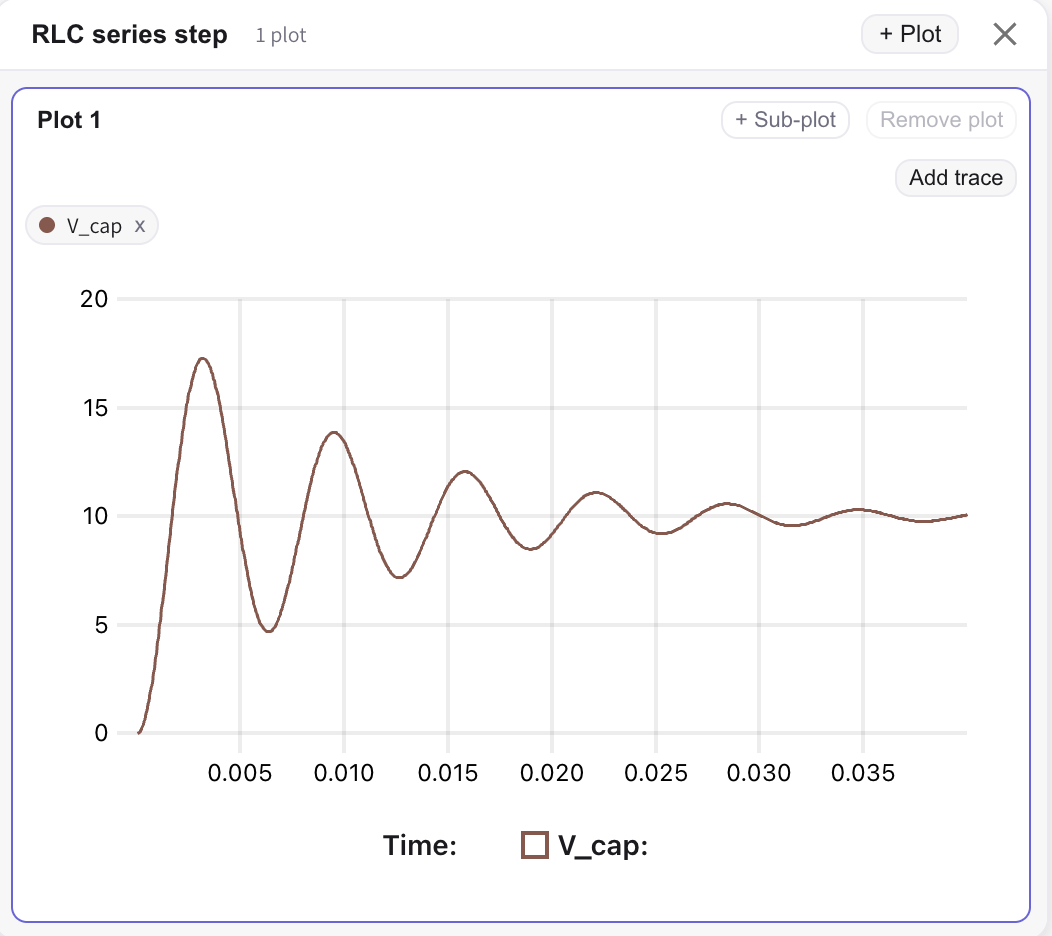
Double-click an Oscilloscope (or double-tap it on a touch device) to open its panel. The panel floats over the canvas, follows it when you pan and zoom, and can be resized from its bottom-right corner. You can have several panels open at once. Collapse a panel with the button in its header; reopen it with another double-click.
An Oscilloscope holds one or more plots, and each plot holds one or more sub-plots stacked on a shared time axis:
- + Plot adds a plot with its own time axis. Click a plot's title to switch to it and rename it (Enter keeps the new name, Esc cancels). Remove plot deletes the active one.
- + Sub-plot adds a sub-plot under the others in the active plot, and Remove sub-plot deletes one. Sub-plots are the answer when traces have very different sizes (e.g. a 400 V DC bus and a 0–5 V control signal).
- Add trace in a sub-plot opens the signal picker. A new sub-plot says No traces in this sub-plot yet. until you add one.
Each trace appears as a chip above its sub-plot:
- Click the trace name to change its colour: pick a swatch, or Custom… for any colour. Reset goes back to the default colour.
- Drag a chip onto another sub-plot to move the trace there.
- Click the chip's × to remove the trace.
The panel's layout — plots, sub-plots, traces and colours — is saved with the circuit.
Plot
A Plot draws its chart right on the canvas, so it moves and zooms with the circuit. Resize it from its edges, and use the zoom buttons in its title bar.
- Right-click the Plot and choose Properties…, or click the sliders icon in its title bar, to open Plot Properties. Set the Name, use Add trace to add signals, Add subplot to stack another chart below, then click Done. The arrows on each subplot reorder them.
- Double-click the title text to rename the Plot.
- Double-click the title bar to minimize the Plot to just its title; double-click again to restore it.
Meter
A Meter shows the latest value of one signal as a large number. Double-click it to open its properties dialog and pick the Signal. During a run it shows the newest sample; when the run ends it holds the final value. Before there's a value to show it reads —.
Values are shown with up to four decimal places, switching to scientific notation for very large or very small numbers.
Reading a chart
The Oscilloscope and the Plot share the same chart gestures:
- Hover for a cursor and the value of each trace at that time. Sub-plots in the same plot share the cursor.
- Drag across the chart to zoom into that stretch of time.
- Double-click the chart to fit it to all the data again.
- Use the range sliders along the axes to pan the zoomed view.
Between runs
Each click of Run replaces the data in every display. Your traces, sub-plots and colours stay, so you can change a parameter, run again, and read the new result in the same place. NumaSim doesn't export results to a file.
When a run records more samples than the chart has pixels, the chart keeps the highest and lowest value in each pixel column, so short spikes stay visible.
See also
- Running a simulation — start a run that streams into these displays.
- Observables — what can become a trace, and how to limit what's recorded.
- Multi-rate monitoring — plotting fast and slow signals on the same chart.